Stay Ahead of Downtime: A Guide to EC2 Status Check Alarms

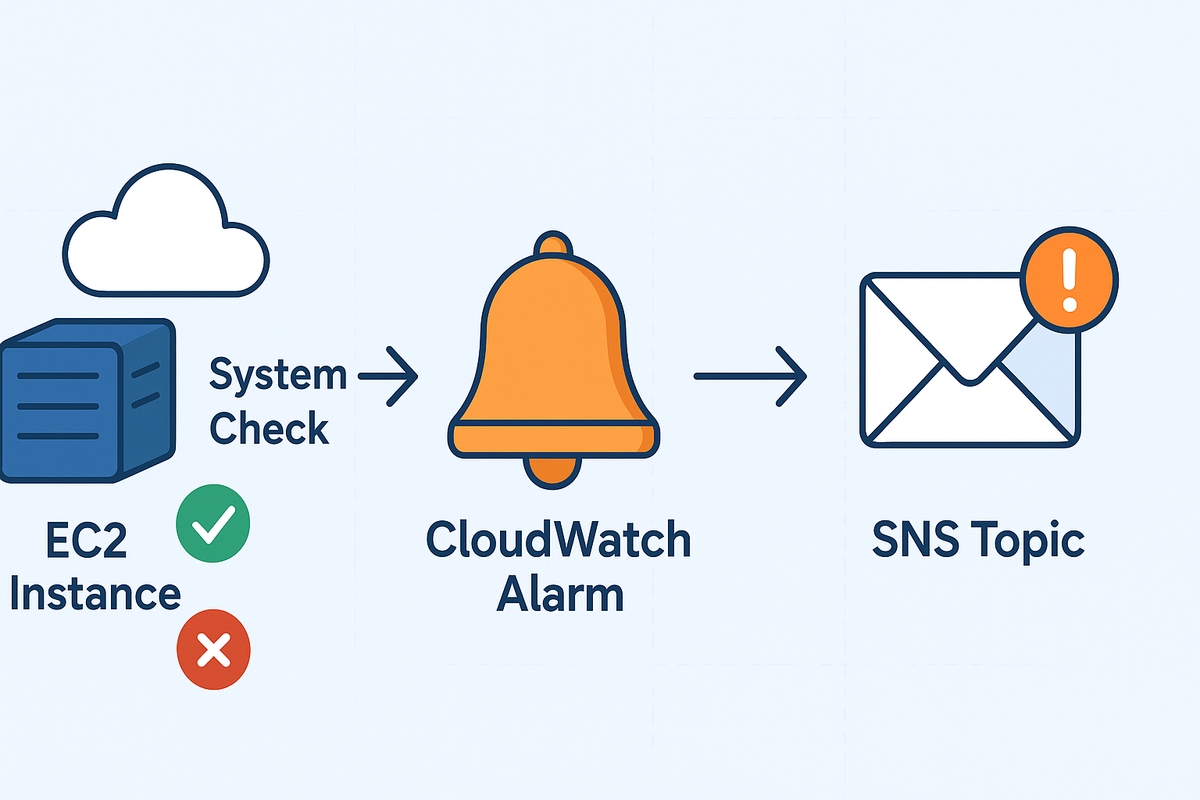
AWS EC2 status checks are a crucial way to monitor the health of your instances. When a status check fails, it signals that something is wrong, and setting up an alarm is the best way to ensure you're notified immediately. This blog post will walk you through the process of setting up an Amazon CloudWatch alarm for your EC2 instance's status.
Understanding EC2 Status Checks
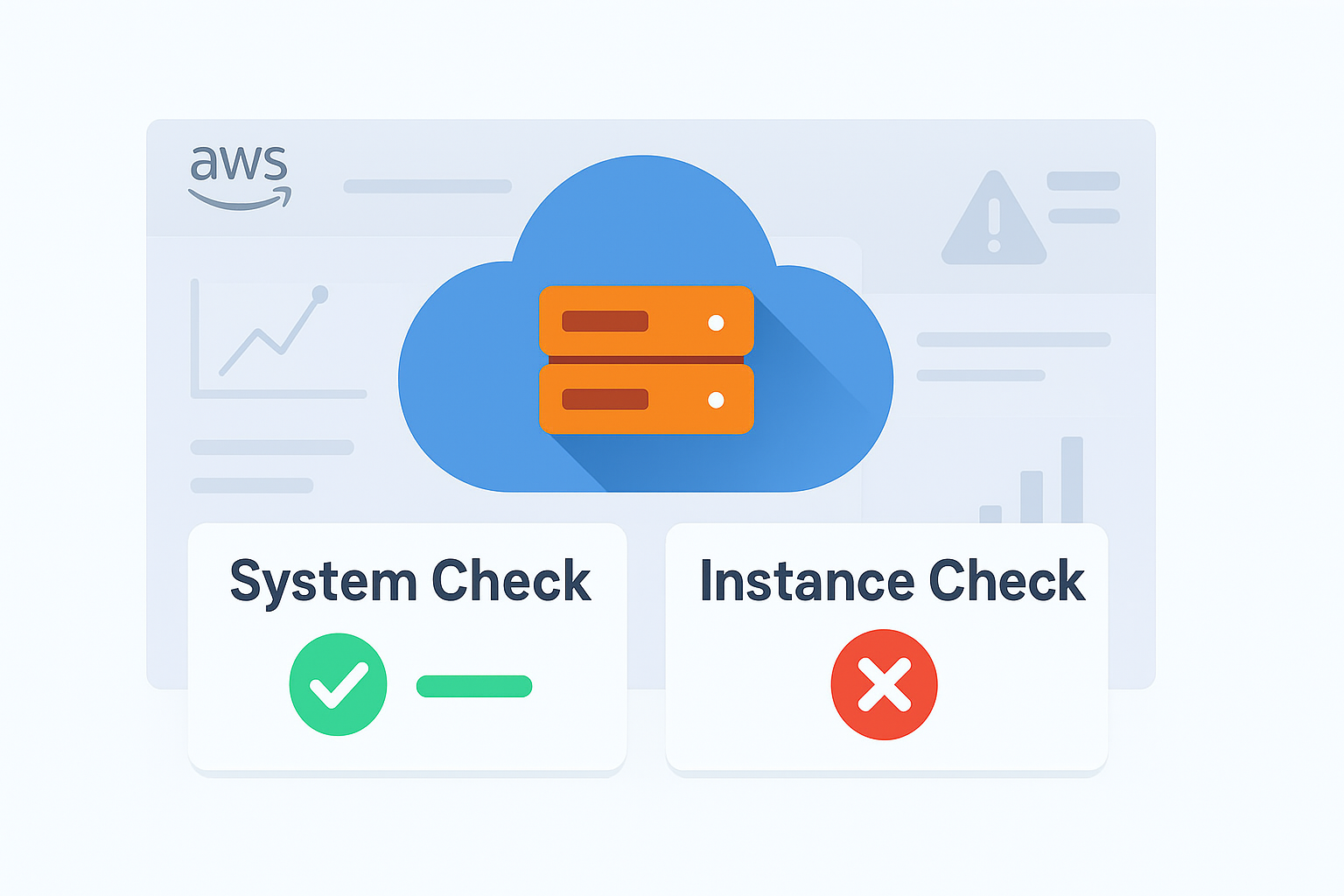
Before we dive into the setup, it's important to understand the two types of EC2 status checks:
- System Status Checks: These monitor the underlying AWS infrastructure your instance runs on. A failed system status check means there's an issue with the host hardware, network, or power. This is an AWS problem to fix.
- Instance Status Checks: These monitor the software and network configuration of your instance. A failed instance status check means there's an issue within your instance's operating system, such as a full disk or an exhausted CPU. This is a problem you need to fix.
By default, Amazon CloudWatch monitors these metrics and reports a value of 0 for success and 1 for failure. Our alarm will be based on these values.
Step 1: Create an SNS Topic
To get notified when the alarm triggers, you'll need an Amazon Simple Notification Service (SNS) topic. This is what CloudWatch will publish a message to, which in turn sends a notification to you (e.g., via email or text message).
- Go to the AWS Management Console and search for SNS.
- In the left-hand navigation pane, select Topics and then click Create topic.
- Choose the Standard topic type.
- Give your topic a descriptive name, like
ec2-status-alarm-notifications, and then click Create topic. - After the topic is created, go to the Subscriptions tab and click Create subscription.
- For the Protocol, choose Email.
- For the Endpoint, enter the email address where you want to receive the alerts.
- Click Create subscription. You will receive a confirmation email. Be sure to click the link in the email to confirm your subscription.
Step 2: Create the CloudWatch Alarm
Now that your notification system is in place, you can create the alarm.
- Navigate to the EC2 Dashboard.
- In the left-hand navigation pane, select Instances.
- Select the EC2 instance you want to monitor.
- In the details pane below, click on the Monitoring tab.
- Click on the Manage CloudWatch alarms button.
- Click Create an alarm.
Step 3: Configure the Alarm Metrics and Actions
This is where you define what triggers the alarm and what happens when it does.
- Metric: The metrics for status checks are already pre-selected. You'll see two metrics:
StatusCheckFailed_SystemandStatusCheckFailed_Instance. A common practice is to create a single alarm for both, using theStatusCheckFailedmetric, which combines both. - Conditions: For the alarm to trigger, the condition needs to be met.
- Threshold type: Static.
- Condition:
> = 1. - Datapoints to alarm: Set this to
1over a period of1 minute. This means if a status check fails for just one minute, the alarm will be triggered.
- Actions: This is where you tell the alarm what to do.
- Notification: Select the SNS topic you created in Step 1.
- EC2 action: You have a few options here.
- Recover: This option attempts to automatically recover the instance on a new host. This is a great choice for system status check failures.
- Stop/Terminate/Reboot: These actions can also be configured.
- Name and Description: Give your alarm a descriptive name, like
ec2-instance-failed-status-check, and a brief description. - Review the settings and click Create alarm.
Best Practices & Conclusion
- Be Proactive: Don't wait for a problem to occur. Set up status check alarms on all your critical EC2 instances as a standard procedure.
- Use the Right Actions: For
StatusCheckFailed_Systemalarms, consider the Recover action, as this can often resolve the issue without manual intervention. ForStatusCheckFailed_Instancealarms, a Reboot action might be a good first step, but often requires you to log in and troubleshoot. - Monitor Other Metrics: While status checks are vital, don't forget to monitor other metrics like
CPUUtilization,DiskReadBytes, andNetworkOutto get a comprehensive view of your instance's health.
By following these steps, you've created a robust monitoring solution that will automatically alert you to any EC2 status check failures, giving you the power to react quickly and minimize downtime. 🚀